Posts

Showing posts with the label active directory

Deploying Active Directory Domain Services on Windows Server 2012 R2

Image
Deploying Active Directory Domain Services 2012 R2         Guide 1.0 David Acevedo Step By Step to deploy Active Directory Domain Services   Open your Server Manager Dashboard Click on Manage then Add Roles and Features   it will appear the Wizard   Click Next   Select Role-Based o feature-based installation and Next Select a server from the server pool and Next. Note:     In my case is the DC01 but you can have multiple servers   add them the roles/features and you don’t need to access the remote servers. This helps you to consolidate administration. Select Active Directory Domain Services and all required features for ADDS click Add Features and Next . Next on Features Tab Next on AD DS Now Install   (I recommend to select the Auto Restart ) Now you are Installing AD DS No...
Desktop Infrastructure Workshop App-V 5.0, VDI. Hyper-V, Server 2012,Windows 8

Desktop Infrastructure Workshop App-V 5.0, VDI. Hyper-V, Server 2012,Windows 8 Microsoft PR Today conducted a seminar Desktop Deployment Services focused on Microsoft technologies.  One of the technologies my attention was App-V to help the issue of migration   from Windows XP to Windows 8.  These workshops are going to be providing weekly, whether public from 5 people on and they will be selected from our database.

Deploy App-V 5.0 Client Configuration VIA GPO on Windows Server 2012

Image
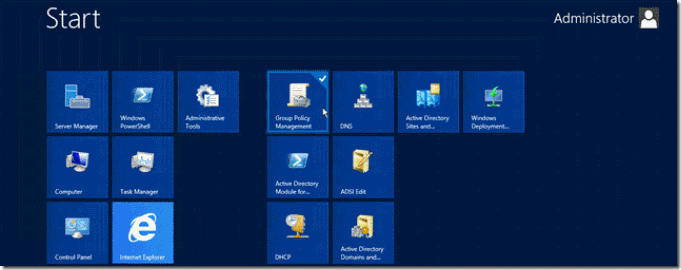
Deploy App-V 5.0 Client Configuration VIA GPO on Windows Server 2012 Things you should know before begin deploying client: Active Directory Knowledge on OU, Groups and GPO’s. Scripting in Power Shell is a plus. Well understanding when deploying GPO’s , such as time it takes to apply and if you want to deploy this policy to machines or users. I recommend Create an OU named _MS_ Application_ Virtualization to assign policies only to that OU and no affect the whole users of your AD. 1. Assign App-V Client Configuration via Group Policy a. Install MDOPADMXTemplate.msi, you could found at Microsoft site http://www.microsoft.com/en-us/download/details.aspx?id=35516 b.  If you want to use ADMX you should have Windows Server 2008 R2 or later. c.  Import the MDOPADMXTemplate.msi in Group Policy Access. d.  Now go to Group Policy Management on the Root domain controller. e. Expand you Active Directory hierarchy, and Search your  OU _MS Application_V...

GPO Reports of Active Directory via Power Shell to HTML in Windows Server 2012

Image
Open Power Shell as Administrator         Then write the following PS Script.   You have two ways to make this happend. Option One Get-GPOReport –ALL Get-GPOReport –Name “Default Domain Controllers Policy” –ReportType HMTL –Path C:\GPOReports\DDCP.html Make sure that you have choose the correct name of the GPO, and you have the directory created. How to create an directory from PS? Here’s the command New-Item C:\GPOReports –ItemType Directory       Option Two   $gpos = Get-GPO –ALL Foreach($gpo in $gpos) { $File = “C:\GPOReports” + gpos.displayname + “.html” Get-GPOReport –Name $gpo.displayname –ReportType HTML –Path $File }   Hope this helps Any question just send me an email or contact me via twitter @davidiacevedo Thanks for viewing