Posts

Showing posts with the label GPO

Deploy App-V 5.0 Client Configuration VIA GPO on Windows Server 2012
Image
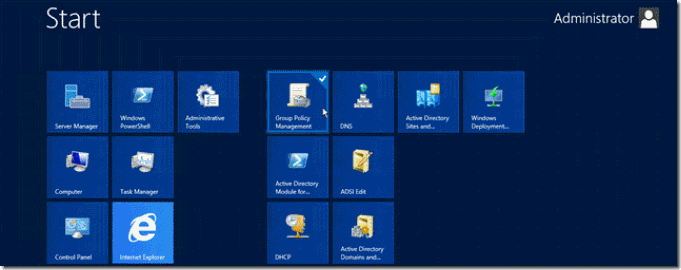
Deploy App-V 5.0 Client Configuration VIA GPO on Windows Server 2012 Things you should know before begin deploying client: Active Directory Knowledge on OU, Groups and GPO’s. Scripting in Power Shell is a plus. Well understanding when deploying GPO’s , such as time it takes to apply and if you want to deploy this policy to machines or users. I recommend Create an OU named _MS_ Application_ Virtualization to assign policies only to that OU and no affect the whole users of your AD. 1. Assign App-V Client Configuration via Group Policy a. Install MDOPADMXTemplate.msi, you could found at Microsoft site http://www.microsoft.com/en-us/download/details.aspx?id=35516 b.  If you want to use ADMX you should have Windows Server 2008 R2 or later. c.  Import the MDOPADMXTemplate.msi in Group Policy Access. d.  Now go to Group Policy Management on the Root domain controller. e. Expand you Active Directory hierarchy, and Search your  OU _MS Application_V...
How to convert a Package of App-V 4.6 to App-V 5.0 with Power Shell

Image
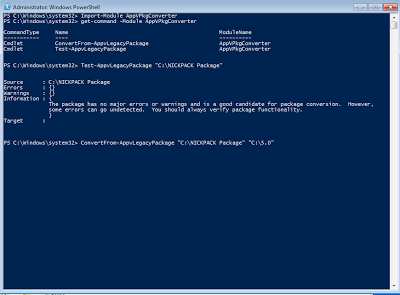
How to convert a legacy package to App-V 5.0 with Power Shell Hello everyone there here’s an script for convert the legacy App-V packages on a Sequencer VM You will need to use Power Shell x32 to make this happen .  Windows 7 x32  SP1 with Power Shell 3.0 and .NetFramework 4. On this machine you will need the sequencer application installed to get all Cmdlets of App-V. I recommend use Power Shell ISE and save the script for future conversions.   Import-Module AppvPkgconverter <enter> # Imports App-V Module Get-Command -Module AppvPkgConverter <enter> # To Get Commands of Appv Test-LegacyAppvPackage "C:\Packages\APP" <enter> # Test if the package will work with App-V 5.0 Convertfrom-LegacyAppvPackage "C:\Packages\APP"  "C:\5.0\APP" <enter> # If the test was great convert the old Virtual App to a App-V 5.0. Don't Forget create the Target Directory   Thanks for watching...

GPO Reports of Active Directory via Power Shell to HTML in Windows Server 2012

Image
Open Power Shell as Administrator         Then write the following PS Script.   You have two ways to make this happend. Option One Get-GPOReport –ALL Get-GPOReport –Name “Default Domain Controllers Policy” –ReportType HMTL –Path C:\GPOReports\DDCP.html Make sure that you have choose the correct name of the GPO, and you have the directory created. How to create an directory from PS? Here’s the command New-Item C:\GPOReports –ItemType Directory       Option Two   $gpos = Get-GPO –ALL Foreach($gpo in $gpos) { $File = “C:\GPOReports” + gpos.displayname + “.html” Get-GPOReport –Name $gpo.displayname –ReportType HTML –Path $File }   Hope this helps Any question just send me an email or contact me via twitter @davidiacevedo Thanks for viewing